
As an Arduino engineer who has worked with countless projects and helped developers troubleshoot library installations, I can tell you that understanding how to properly install ZIP libraries is a fundamental skill every Arduino programmer needs to master. This comprehensive guide will walk you through everything you need to know about installing ZIP libraries in Arduino IDE, from the basics to advanced troubleshooting techniques.
Understanding Arduino Libraries and Why ZIP Installation Matters
Before we dive into the installation process, it’s important to understand what Arduino libraries are and why the ZIP installation method exists. Arduino libraries are collections of pre-written code that extend the functionality of your Arduino IDE. They provide ready-to-use functions for interfacing with sensors, displays, communication modules, and countless other components.
Libraries save you from reinventing the wheel every time you start a new project. Instead of writing hundreds or thousands of lines of code to control an LCD display or communicate via Bluetooth, you can simply include a library and call its functions.
The ZIP installation method is particularly valuable because not all libraries are available through the Arduino Library Manager. Some developers distribute their libraries exclusively as ZIP files, especially for beta versions, custom modifications, or specialized hardware that hasn’t made it into the official repository. Additionally, if you’re working in an environment without reliable internet access or need to install a specific version of a library, having the ZIP file gives you complete control.

Prerequisites for Installing ZIP Libraries
Before you begin the installation process, ensure you have the following requirements in place. First and foremost, you need the Arduino IDE installed on your computer. This guide applies to Arduino IDE version 1.0 and later, including the newer Arduino IDE 2.0. The process is similar across versions, though I’ll note any significant differences.
You’ll also need the library ZIP file itself. This should be a properly formatted ZIP archive containing the library files. Most importantly, verify that the ZIP file hasn’t been corrupted during download. A corrupted file is one of the most common issues I encounter when helping developers troubleshoot installation problems.
Make sure you have appropriate permissions on your computer to install software and modify files in the Arduino directory. On some systems, particularly corporate or educational computers, you may need administrator privileges.
Step-by-Step Guide to Installing a ZIP Library
Let me walk you through the complete installation process. I’ve broken this down into detailed steps that will work regardless of your operating system.
Step One: Downloading the Library
The first step is obtaining the library ZIP file. If you’re downloading from GitHub, which is where most Arduino libraries are hosted, navigate to the library’s repository page. Look for a green button labeled “Code” and click it. From the dropdown menu, select “Download ZIP.” This will download the entire repository as a ZIP file.
Some libraries may be hosted on other platforms or the developer’s personal website. Wherever you download from, ensure you’re getting the file from a trusted source. Malicious code disguised as Arduino libraries is rare but not unheard of.
Once downloaded, I recommend creating a dedicated folder on your computer for Arduino library ZIP files. This makes it easy to reinstall libraries if needed and keeps your downloads organized.
Step Two: Opening Arduino IDE
Launch your Arduino IDE. It’s important to note that you don’t necessarily need to close and reopen the IDE after installing a library, but doing so ensures that the IDE properly recognizes the new library. I’ll explain this more in the troubleshooting section.
Make sure you’re running a recent version of the Arduino IDE. While older versions support ZIP library installation, newer versions have improved the process and made it more reliable. You can check your version by going to Help > About Arduino.
Step Three: Accessing the Library Installation Menu
In Arduino IDE, navigate to the top menu bar and click on “Sketch.” From the dropdown menu, hover over “Include Library.” This will open a submenu with several options. At the top of this submenu, you’ll see “Add .ZIP Library…” This is the option you want.
In Arduino IDE 2.0, the menu structure is slightly different but follows the same logic. The option may appear as “Add ZIP Library” without the ellipsis, but the functionality is identical.
Step Four: Selecting Your ZIP File
Clicking “Add .ZIP Library…” will open a file browser window. Navigate to the location where you saved your library ZIP file. Select the file and click “Open” or “Choose” depending on your operating system.
Here’s a critical point that many beginners miss: you must select the actual ZIP file, not an unzipped folder. The Arduino IDE expects a compressed ZIP archive. If you’ve already unzipped the library, you’ll need to either re-zip it or use the manual installation method, which I’ll cover later.
Step Five: Waiting for Installation Confirmation
After selecting the ZIP file, Arduino IDE will extract and install the library automatically. This process usually takes just a few seconds, but larger libraries might take longer. You’ll see a status message at the bottom of the Arduino IDE window indicating that the library is being installed.
Once installation is complete, you should see a confirmation message stating “Library added to your libraries.” This message appears briefly and then disappears, so watch for it. If you miss it, don’t worry—you can verify the installation through other means, which I’ll explain shortly.
Verifying Your Library Installation
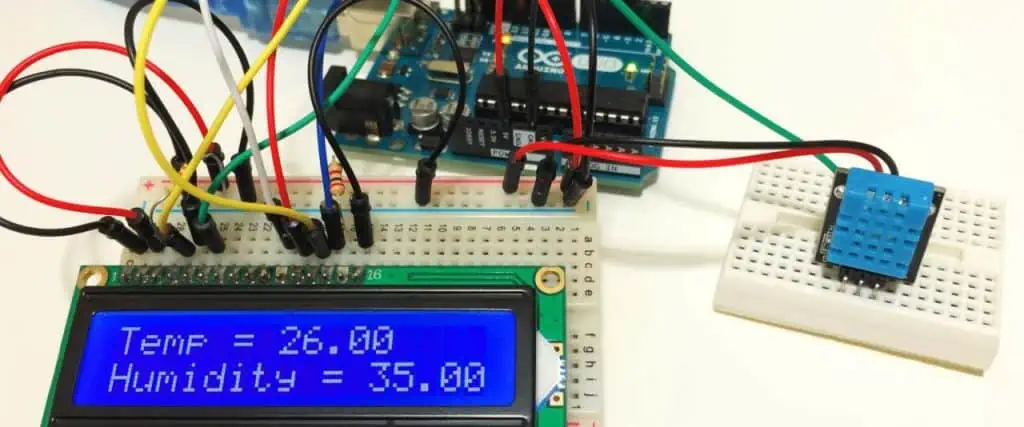
After installing a library, it’s good practice to verify that the installation was successful. There are several ways to do this, and I recommend checking at least two of them to be certain.
Method One: Check the Include Library Menu
Return to Sketch > Include Library in the menu bar. Scroll down past the “Contributed libraries” section. You should see your newly installed library listed alphabetically. If you see it there, the installation was successful, and you can now include it in your sketches.
Method Two: Check the Libraries Folder
For a more thorough verification, you can navigate to your Arduino libraries folder on your computer. The location varies by operating system. On Windows, it’s typically in Documents\Arduino\libraries. On Mac, you’ll find it at Documents/Arduino/libraries. On Linux, it’s usually in the home directory under Arduino/libraries.
Open this folder and look for a folder with your library’s name. Inside, you should see the library’s source files, typically including .cpp and .h files, along with an examples folder and possibly a keywords.txt file.
Method Three: Try an Example Sketch
The most reliable way to verify installation is to actually use the library. Many libraries come with example sketches that demonstrate their functionality. Go to File > Examples, scroll down to find your library’s name, and open one of the example sketches. If the sketch opens without errors and you can see the library included at the top of the code, your installation is confirmed.
Understanding Library Structure and Common Issues
To become proficient at managing Arduino libraries, you need to understand how they’re structured. A properly formatted Arduino library has a specific directory structure that the IDE expects.
At the minimum, a library folder must contain the library source files with .cpp and .h extensions. The .h file is the header file that declares the library’s classes and functions, while the .cpp file contains the actual implementation. The library folder name should match the main header file name—this is crucial for the IDE to recognize the library correctly.
Many libraries also include an examples folder containing sample sketches, a keywords.txt file for syntax highlighting, a library.properties file with metadata, and a README file with documentation. While these additional files aren’t strictly necessary for the library to function, they improve usability and provide important information.
One common issue I encounter is when a ZIP file contains an extra nested folder. For example, you might download a file named “MyLibrary-master.zip” which, when extracted, creates a folder called “MyLibrary-master” containing another folder called “MyLibrary” with the actual library files. When Arduino IDE extracts such a file, it may install the outer folder, causing the library to not be recognized properly.
Manual Installation Method as an Alternative
While the ZIP installation method is convenient, there are times when manual installation is necessary or preferable. This is particularly useful when dealing with problematic ZIP structures or when you need more control over the installation process.
To manually install a library, first extract the ZIP file using your computer’s built-in extraction tool or a program like WinRAR or 7-Zip. Once extracted, examine the folder structure. You want to find the folder that contains the .h and .cpp files directly—not a parent folder containing this folder.
Navigate to your Arduino libraries folder using the path I mentioned earlier. Copy or move the library folder directly into this libraries folder. Ensure the folder name doesn’t contain spaces or special characters, as these can cause recognition issues.
After copying the folder, restart Arduino IDE. The library should now appear in your Include Library menu. This manual method gives you complete control and helps you understand exactly where libraries are stored on your system.
Troubleshooting Common Installation Problems
Even following these steps carefully, you might encounter issues. Let me address the most common problems I’ve seen and their solutions.
If your library doesn’t appear in the Include Library menu after installation, first try restarting Arduino IDE. The IDE sometimes needs a fresh start to recognize new libraries. If that doesn’t work, check the library folder name—it must not contain spaces, hyphens in some cases, or special characters.
Another common issue is version conflicts. If you have multiple versions of the same library installed, Arduino IDE might behave unpredictably. Navigate to your libraries folder and remove any duplicate or old versions of the library you’re trying to install.
Permission errors can also cause installation failures. On Windows, try running Arduino IDE as an administrator. On Mac or Linux, check that you have write permissions for the Arduino libraries folder.
If you’re seeing compilation errors after installing a library, the library might be incompatible with your Arduino board or IDE version. Check the library’s documentation for compatibility information. Some libraries are designed for specific boards or require certain IDE versions.
Best Practices for Library Management
As an Arduino engineer, I’ve developed several best practices for managing libraries that I want to share with you. These practices will help you maintain a clean, organized development environment and avoid future headaches.
First, keep your libraries organized and documented. When you download a library ZIP file, rename it to include version information before saving it. For example, instead of just “Adafruit-GFX.zip,” name it “Adafruit-GFX-1.10.7.zip.” This makes it easy to track which version you have and roll back if needed.
Second, periodically audit your installed libraries. Over time, you’ll accumulate libraries you no longer use. These take up space and can slow down IDE startup. Remove libraries you haven’t used in several months, but keep the ZIP files backed up in case you need them later.
Third, always check the library’s documentation and example sketches before diving into your own code. Understanding how the library developer intended it to be used will save you countless hours of debugging.
Fourth, when working on important projects, consider creating backups of your entire libraries folder. This ensures you can restore your exact working environment if something goes wrong during an update or system change.
Conclusion
Installing ZIP libraries in Arduino IDE is a fundamental skill that opens up endless possibilities for your projects. While the process is straightforward—download the ZIP file, open Arduino IDE, navigate to Sketch > Include Library > Add .ZIP Library, and select your file—understanding the details and potential issues makes the difference between a frustrating experience and a smooth one.
Remember that libraries are the building blocks of efficient Arduino development. Taking time to properly install, organize, and maintain them pays dividends in every project you undertake. Whether you’re controlling servos, reading sensors, or communicating with other devices, libraries make complex tasks simple and let you focus on what makes your project unique.
With this guide, you now have the knowledge to confidently install any ZIP library, troubleshoot common problems, and maintain a well-organized development environment. As you continue your Arduino journey, these skills will become second nature, allowing you to rapidly prototype and develop increasingly sophisticated projects.

